

Showing posts with label Advertisement Tricks. Show all posts
Friday, 25 January 2013
Add 4 in 1 Gadget of 125x125 Size Button Advertisement

 Small button ads are very important to a blog because its size is small (125x125) but it is more valuable and profitable for blog. The reason is that, as compare to 300x250 rectangle ad, the four button of 125x125 generate more revenue for your blog than it at same space.
The small buttons are usually use for monthly ads. For Google ads, this is useless as Google Adsense allows only 3 ads on single page. Further more, placing all three ads of Google Adsense (if using 125x125 buttons) at same space is considered stupid. So if you want direct ads for your blog (or using any ad network which provides monthly base ads e.g. BuySellAds), then 125x125 is best choice for this. An example will clear this more that if you place 300x250 size rectangle for monthly price of $15 then the small button (125x125) will generate more revenue from same space with attractive price of $10 x 4= $40.
The basic technique for adding this gadget is very easy. There are two basic things required to place this type of ads. First one is Image Link and the second one is URL (Website Link). If you want to add direct ad (Advertisers contact you directly) then use the following process.
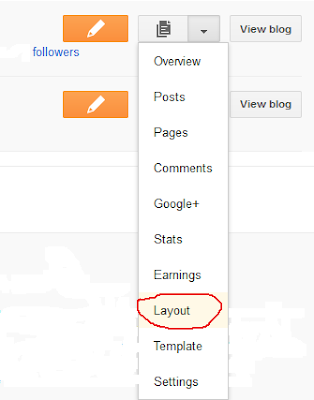
- Go to blogger dashboard and click "More Options Drop Down Button"
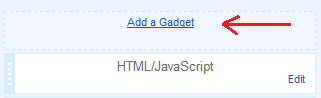
- Select "Layout" and then click on "Add a Gadget"
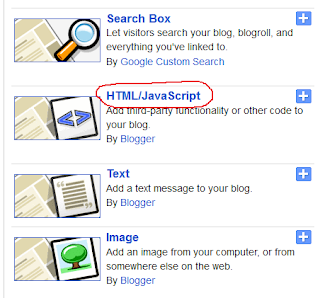
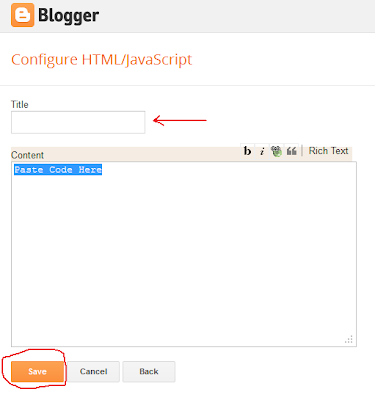
- Choose "HTML/JavaScript" option and place the give code.
<div align="center">If you have want to place ad code (HTML/JavaScript) of any ad network then use following code:
<table border="0" cellpadding="2" cellspacing="6" width="265"bgcolor="#ffffff">
<tbody><tr>
<td><center><a href="URL Here" target="_blank" rel="nofollow"><img border="0" alt="Advertise Here" width="125" src="IMG Link URL" height="125"/></a></center></td>
<td><center><a href="2nd URL Here " target="_blank" rel="nofollow"><img border="0" alt="Advertise Here" width="125" src="2nd IMG Link URL" height="125"/></a></center></td>
</tr>
<tr>
<td><center><a href="3rd URL Here" target="_blank" rel="nofollow"><img border="0" alt="Advertise Here" width="125" src="3rd IMG Link URL" height="125"/></a></center></td>
<td><center><a href="4th URL Here" target="_blank" rel="nofollow"><img border="0" alt="Advertise Here" width="125" src="4th IMG Link URL" height="125"/></a></center></td>
</tr>
</tbody></table>
<table border="0" bordercolor="#0084ce" cellpadding="2" cellspacing="6" width="265" bgcolor="#ffffff">
</table>
</div>
<div align="center">
<table border="0" cellpadding="2" cellspacing="6" width="265"bgcolor="#ffffff">
<tbody><tr>
<td><center>125x125 button HTML/JavaScript Code Here </center></td>
<td><center> 125x125 button HTML/JavaScript Code Here </center></td>
</tr>
<tr>
<td><center>125x125 button HTML/JavaScript Code Here </center></td>
<td><center>125x125 button HTML/JavaScript Code Here </center></td>
</tr>
</tbody></table>
<table border="0" bordercolor="#0084ce" cellpadding="2" cellspacing="6" width="265" bgcolor="#ffffff">
</table>
</div>
Replace the Website links, image links or HTML/JavaScript from the above codes accordingly and save your Gadget.
If this is helpful for you then please share with your friends.
Best Wishes.
Tuesday, 15 January 2013
How to Show Google Ads Below Post Title
 Google Ads are very important to the publishers who generate quality contents for their blog or websites. So it is necessary to place ads at valuable places on your site. The most important place for ads is below post title because it shows when a visitor reaches your website through search engine as he/she direct gets into your post and if looks an ads according to his/her requirement then you may get a click from that ad. I have already discussed about displaying ads below post title, but for Google Ads, the criteria is a little bit different. The best size for below post title is 300x250 as you can ad your content or image along with Google Ads.
By adding Google Ads below post title, you will get more CTR (Click Through Ratio) than other situation.
Lets start the step by step procedure.
- Go to your Adsense Account and if do not already have Ad Unit of 300x250 size.
- Get the code and save it to Notepad file.
Now you have to escape all special characters in the code such as < and >. You can encode your original code here.
- Open your dashboard and select "Template".
- Click on "Edit HTML" and then check mark on "Expand Widget Templates"
- Now press ctrl+F and type
<data:post.body/>
Copy the special character escaped code (Encoded) and paste it just above <data:post.body/>
Please keep in mind that there may be more than 1 <data:post.body/>, so allow the ad unit to activate. (For checking purpose, you can place ad code into your sidebar). The simple method is that you can check it by pasting it one by one above all <data:post.body/>.
- If you wan to align the Google ads left, right or center then you can add the code with following div tag.
<div style='float:right;padding:2px;'>
Your Encoded Ads Code Here
</div><data:post.body/>
- Change right accordingly to change the alignment of ad e.g. center or left.
- Paste the encoded Google Ads code where it says Your Encoded Ads Code Here
Best Wishes.
Monday, 14 January 2013
HTML Encoder to Escape Special Character in Code
 In some conditions, you need to encode your HTML or JavaScript to implement it in some specific places. So You need to encode it to escape the special characters that includes in the code e.g < and > symbols. For example, if you want to add Google Adsense Code into your XML or HTML editing page then you have to escape all special characters otherwise Google Ads will not appear. I am adding the encoder for your ease, you have to just copy your code and then paste it in first box and get the encoded/escaped code from the box below and paste it to your required space within HTML or XML editing page.
Encoder
Enter Original Code HereGet Your Encoded/Escaped Code
Hope it is very helpful to you.
Best Wishes
Friday, 4 January 2013
Why Google Bans A Website for AdSense
Sometimes you have shocked when you see the message from google adsense "Your Google Adsense Account has been disabled". And you do not know that why your Adsense account has been banned. There are many reasons for this. Google never banned an account without a reason. So never make fault the google but care your account from your side. Because if once your Google Adsense account has been disabled, you can not restore it and can never get another account too. So keep in mind some reasons that google tells and you came to know them after getting banned. Therefore keep a deep eye on the reasons below and take care of your Google Adsense Account.


Including Copyrighted Material
Whenever you write a post for your blog or website, use your own original contents. Do not copy contents from any other website or blog without permission of the owner. Remember that only the keywords are not considered copyrighted but all images, graphics, photographs and videos are also remain in the circle of copyright. So never copy the material without permission. Whenever the owner of the content will file a report to google, your Google Adsense account will be disabled. You can create you own images with different style and can publish it easily. You have to do some hard work and remember that hard work is key to success and your original content will be proved fruitful to you and your blog.
If you are running a blog or website of software and games, then do not keep the links of cracks or serial numbers or any full version software and games. You can put the links of Freeware or Trial version of software and games.
If you are running a blog or website of software and games, then do not keep the links of cracks or serial numbers or any full version software and games. You can put the links of Freeware or Trial version of software and games.
Invalid Clicks
You also know well that you can not click your own ads even for testing or never can offer to your friend or anyone to click on ads. Sometimes, you accidentally click your own ad but there is no mater for infrequently accidentally clicks. Mostly publishers also come to know about some frequently invalid clicks. So instantly report those activity to google so that your google adsense account remain safe. Remember that google detects invalid clicks easily and you never paid for any click from that ip address. So do not hesitate to report the invalid click activity to save your Google Adsense Account.Sharing Your AdSense Earning and Reports
Never share your revenue report with anybody or publish it. Sometimes if you have to publish some reports for a kind of your post e.g. CTR, eCPM etc then erase your e-mail address, publisher ID, earnings and other information that are personal to you. If you publish your personal information of revenue then google may banned you so avoid to do this.Running Blog Without Privacy Policy
If you are running a personal blog or website then you have to add "Privacy Policy" for your blog or website. It is required by Google Adsense to include it. Here is the guideline paragraph to make you privacy policy from google adsense.AdSense publishers must have and abide by a privacy policy that discloses that third parties may be placing and reading cookies on your users' browsers, or using web beacons to collect information as a result of ad serving on your website. [obtained from Google Adsense Program Policy]
You must keep the link of your "Privacy Policy" page at the footer of the page near the copyright message so that it looks like more professional.
Including Pornographic Material or Any Other Illegal Material or Links
Google do not allow the adult content. So you can not include pornography, adults, mature, alcohol, tobacco, gambling, hacking, cracking or any other illegal material into your website or blog. You can see the complete list of restricted contents and material on Google Adsense Program Policy Page below the "Content guideline".Getting Traffic from Un-Natural Way
If you are generating traffic in an un-natural way then also google will ban you. For example, if you are using some traffic exchange site then google will also ban you. You can not buy your traffic etc from PTC (Pay To Click) sites. To improve your traffic always use the natural way e.g. write original contents, launch your blog or website completely with all meta descriptions. Never paid a penny for your traffic, improving rank, backlinks etc because all your money will waste and your adsense account will be banned too.Making Confusion to Google Adsense Ads Layout
Do not apply for ads network that confuse the Google Adsense ads. It means that you can not place the ads on the same site that are similar to google ads in layout and previews. You can not add the ads which have pop-up or pop-under pages. So try to keep adsense alone. You can also put the ads those are quite different in style from adsense e.g. some image ads or monthly basis ads.Multiple Adsense Accounts
You can not have multiple accounts even within same address. If google detects multiple account they will disable all your accounts. So be careful and never create. You can use you same adsense account for multiple sites those meet the all requirements and policies of google adsense. So there is no need to get multiple accounts. If by some mistake, you get multiple account then report google about that account with excuse so that your adsense account remain safe.
I hope these information will be helpful for those who are new in blogging and web development. So if you want to have google adsense account for ever then put the ads on your blog or website and forget about this, just keep intention to your blogging and posting. Google will always care for your revenue according to your skill. :-)
Best Wishes.
Thursday, 3 January 2013
How to Check Banned Websites by Google Adsense

There are billions of sites in this world. And they are increasing in numbers day by day. Every website, which have some rank and gets some traffic can easily earn by ads revenue. The most popular and highly recommended among all of ads network is Google AdSense. The reason for popularity of Google AdSense is of its trust and more high revenue share for publishers. So everyone wants to have Google AdSense for his site. But there are some sites which are banned by Google AdSense. Now the question is that how you can check the websites which are banned or not.
Through surfing, I came to know a website sandbox from which you can easily learn which sites are banned by google and which are not banned yet. From Google Adsense Sandbox, you can learn also particular adSense banned site by country.

You can see the snapshot of Google Adsense Sandbox. By entering the website URL and then selecting the country, you can check the website if it is banned by Google AdSense or not. When you click on "Preview Ads" the ads will appear below, if you see no one ads below then that site is banned for that specific country. To check overall appearance of ads worldwide, keep unselected the country tab.
For Example, if you want to check a website is banned worldwide or not, then just enter the website address and click "Preview Ads". If the ads appear then it means this site is not banned world. If you want to check if this site's ads are banned in your country or not the select your country and then click on preview. If ads show then its OK otherwise that site's Google Ads are banned for your country only.
If this is helpful for you, please share it with your friends.
Best wishes.Monday, 19 November 2012
Top 5 Highly Paying Ads Networks Altering Google Adsense
Now a days, Google Adsense is very popular among the publisher to monetize their website/blog. That's why every publisher wish to decorate his site with Google Adsense to earn more and more because of highly revenue share of Google Adsense as compared to all other ads network. On the other hand, Google has very strict and cruel policies for publisher and because of this a lot of publisher get banned every day and become disappointed. Today I am going to tell you about some ads networks for those publishers who get banned from Google Adsense, so that they can continue to earn from his website/blog. Although these networks do not pay so much just like Google Adsense but using these they can make money from their sites.

1- Bidvertiser

Bidvertiser.com is contextual ads network and it is the highly paying ads network just after the Google Adsense. They pay minimum $ 0.01 for one click and it can be increase to an average of $ 0.05 per click. Bidvertiser is good for high traffic website/blog. You need to just sign up and then submit your site. You get approved soon. After that you can select size and color scheme. Remember that each size has different bidvertiser. You need to add new bidvertiser for each size ad. All size will display on the dashboard. You can select the require size and get the code.
Bidvertiser will block your account only if you click your own ads, ask someone to click. So never click your own ad. Just work to improve your site traffic to earn more and more. Bidvertiser is not compatible with Google Adsense because they have same layout as the Google Adsense.
Payment Methods of bidvertiser are PayPal, Moneybookers, Check and Bank Wire. For Moneybookers and PayPal, minimum payout is $ 20. If you want to cashout through Check then you must have $ 100 in your bidvertiser account. To get cash into your Bank Account, the minimum thresh hold is $ 500.
2- Infolinks

Infolinks.com is also a good ads network but they pay very low because of there mostly advertisers are from USA, Canada and UK. If your blog/website has very huge traffic from these countries then it is best choice. But if you have mix traffic from all over the world then it will be good to add it with other ads networks. Infolinks ads are compatible with Google Adsense because these are in-text ads which are quite different in layout than Google Adsense.
To get infolinks account, you need to sign up and they will provide you a JavaScript. You need to put this JavaScript into you site. Remember that your site must have rich content to get approval. If you do not put JavaScript code into your site, they will block your site/blog. After adding code, they will approve your account within 3 days and in-text ads will appear on your site/blog.
Payment Methods of Infolinks are Western Union, Payoneer Debit Master Card and Bank Wire. The minimum cash out thresh hold is $ 50 into Payoneer Debit Master Card. For Western Union $ 100 and a fee of $ 15. For Bank Wire the fee of $ 25 will be deducted and minimum cashout is $ 100. The best payout option is Payoneer Debit Master Card.
3- Chitika

Chitika.com is In-Search Text ads network. Like Infolinks, they also have advertisers from USA, Canada and UK so they pay high CPC for traffic from these countries. Chitika is also compatible with Google Adsense. You can get approved easily for Chitika. Just Sign Up and add your site, Get the code and paste it to your site. Ads will start. They will approve silver account initially, if you have very huge traffic then they approve you as Gold. For silver account, you can see all ads of www.answered-questions.com outside the USA, Canada, UK. Gold members can see different ads.
Payment Methods for Chitika are PayPal and Check. Minimum thresh-hold for PayPal is $ 10 and $ 100 for Check.
4- AdBrite

AdBrite.com is another ads network which has a different mechanism for ads. You can easily Sign Up and get account for AdBrite but the approval of website is quite difficult. You must have your top level domain (e.g. www.example.com). They do not provide contextual ads, but they provide fixed ads for monthly basis. When you place the code you see the text "Your Ads Here" and visitors/advertiser can put their ads through this.
5- Clicksor
 Clicksor.com offers contextual ads with underlining the text and opening a window just like infolinks. They also provide pop-up, pop-under and full page pop-up ads. The reason for lower ads rank is that there is no option to disable pop-up or pop-under etc ads in clicksor which is cause to get out your visitors from your site and make negative impression of your site. Otherwise their paying rates are high eCPM from $ 0.20 to $ 0.50.
Payment Methods are PayPal, Check and Bank Wire. You can Withdraw to PayPal or Check when your balance reaches to $ 50. For Bank wire you must have $ 1000 in your account.
Now get ready to monetize your blog/site with the ads network of your choice from given above.
Wednesday, 18 July 2012
Show Ads Below Blogger Post Title
Every Blogger wants to earn high income so he always try to put ads at that place where the blog's user can access the ads instantly. The most suitable place is just below the post title because when a user came to your blog through search engine (e.g. Google) the he directly open your single post. If ads are just below the post title then there are very chances to click that ads by users. But it has a disadvantage for Google Adsense account that this placement of ads will increase the CTR of your adsense account. Normal CTR(Click Through Ratio) for Content Text/Image ads is 1-3 %. Between this ratio of CTR, your adsense account is save, but if your CTR increases from 3%, then there is no guarantee of your Google Adsense Account to alive. They can ban your account because of invalid click reason.

So if you want to put ads below the post title then i recommend you to put Chitika ads as Chitika provides ads for search option.
Now here is the process to post ads below the Post Title.
1- From Blogger Dashboard, click on Design > Edit HTML and then make check Expand Widget Templates.
To see Snapshot help Click Here.
2- For the protection of your blog save your blogger existing template every time before you make any
changes in XML coding. So click Download Full Template.
3- Press Ctrl+F and type<data:post.body/>4- Now copy this code and paste it just before the <data:post.body/>
<b:if cond='data:blog.pageType == "item"'>
YOUR AD CODE HERE
</b:if>
Subscribe to:
Posts
(
Atom
)


